How to Use QR Codes to Get More Google Reviews
By Mike Hass · April 15, 2026 · Updated September 23, 2026
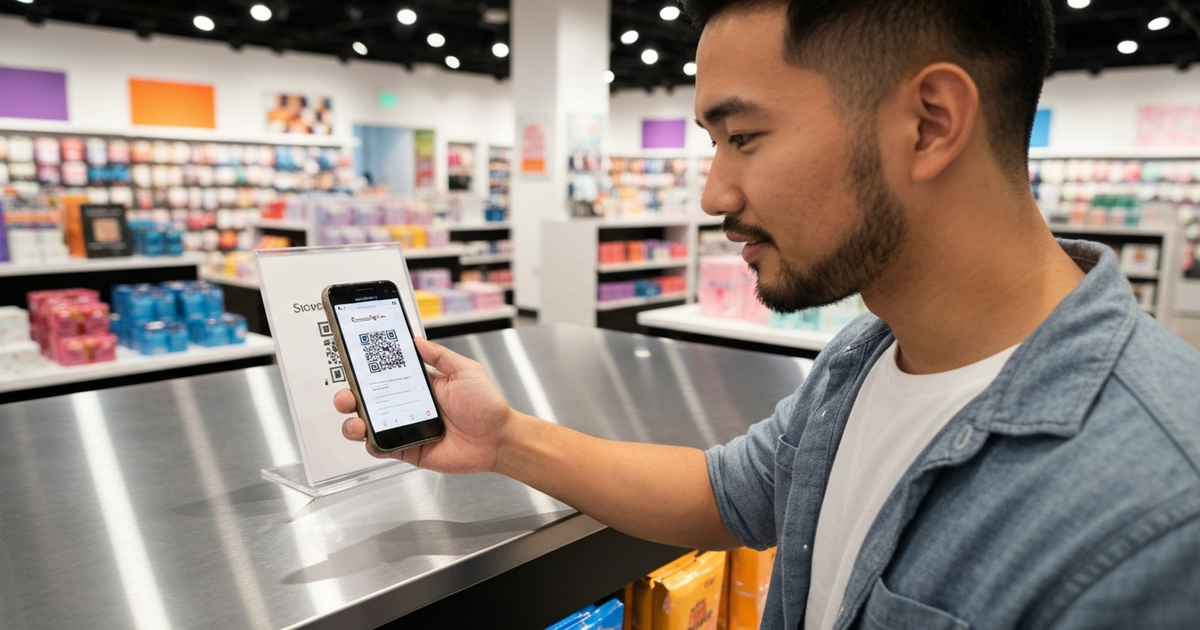
Getting customers to leave Google reviews is one of the most valuable things a local business can do for its online reputation, but it has always come with a frustrating gap. A customer has a fantastic experience at your restaurant, clinic, or shop. They walk out the door genuinely happy. And then life gets in the way. They forget. The review never happens. A QR code for Google reviews eliminates that gap entirely. One quick scan from a smartphone, and your customer is staring at the review form, ready to write. No searching, no typing URLs, no friction.
In this guide you will learn exactly why QR codes are the most effective physical-to-digital bridge for review collection, where to place them for maximum scans, how to create one in minutes, and how Feedback Guru's QR codes and feedback links fit into the process.
Why QR Codes Are Perfect for Review Collection
QR codes have been around for decades, but their adoption exploded during the pandemic when restaurants replaced paper menus with scannable codes. Today nearly every smartphone owner knows how to use one. That ubiquity makes them ideal for collecting Google reviews, and here is why:
- Instant access: A customer scans the code and lands on your Google review page within two seconds. There is no need to remember a website, search for your business name, or navigate Google Maps manually.
- No app required: Every modern iPhone and Android device can scan QR codes through the built-in camera app. You are not asking customers to download anything.
- Works on every smartphone: Whether your customer uses a flagship phone or a budget model, QR scanning is a native feature. There are no compatibility issues to worry about.
- Bridges the physical-digital gap: The biggest challenge with review collection has always been converting an in-person positive experience into an online action. A review QR code placed at the right moment makes that conversion nearly effortless.
- Low cost, high return: Printing a QR code costs virtually nothing. A single table card or counter sign can generate dozens of reviews over its lifetime, making it one of the highest-ROI marketing investments you can make.
How QR Code Review Collection Works
The process is simple, and that simplicity is exactly what makes it so effective. Here is what happens from the customer's perspective:
- Customer sees the QR code on a table card, receipt, counter sign, or any other surface with a clear call to action like "How was your visit? Scan to leave a review."
- Customer opens their phone camera and points it at the code. A notification or link preview appears instantly.
- Customer taps the link and lands directly on your Google review page with the star rating selector already visible.
- Customer leaves a review in as little as 30 seconds, picking a star rating and optionally typing a few words about their experience.
The entire journey from scan to submitted review takes under a minute. Compare that to asking a customer to "find us on Google and leave a review when you get a chance," which almost never converts. A Google review QR code removes every barrier between intention and action.
Where to Place Your Review QR Codes
Placement matters as much as the code itself. The best locations are spots where customers naturally pause, have their phone accessible, and have just finished their visit. Here are ten high-impact placements with specific ideas for each.
Reception and Checkout Counter
This is the single most effective placement for most businesses. Customers are standing at the counter, transaction complete, often already holding their phone to check a digital receipt or payment app. A small acrylic stand or countertop sign with your QR code for Google reviews and a line like "How did we do? Scan to let us know" catches them at the perfect moment.
Table Cards in Restaurants
Table tents and cards sit directly in your customers' line of sight while they wait for the check. This is dead time when diners frequently pick up their phones anyway. A well-designed table card with your review QR code turns that idle moment into a review. Place one on every table, and refresh the cards periodically so they stay clean and readable.
Business Cards
Add a small QR code to the back of your business cards with text like "We'd love your feedback." Every card you hand out becomes a portable review request. This works especially well for service professionals such as real estate agents, consultants, and contractors who hand cards to clients after completing a job.
Invoices and Receipts
Print your review QR code at the bottom of invoices and receipts. The customer is already looking at the document and confirming the transaction went well. A short prompt like "How did we do? Leave us a review" paired with the code is subtle, non-intrusive, and surprisingly effective.
Product Packaging
If you sell physical products, include a review QR code on the packaging, insert card, or shipping label. The customer encounters it during the unboxing experience, which is often a high-emotion moment. E-commerce businesses and subscription box companies see especially strong results from this placement.
Service Vehicles
For HVAC companies, plumbers, electricians, landscapers, and other mobile service businesses, adding a QR code to vehicle wraps or magnetic signs turns every job site into a review opportunity. Neighbors who see the vehicle and the homeowner who just received great service can both scan and review. Use a larger code size so it remains scannable from a few feet away.
Waiting Rooms
Medical offices, dental practices, salons, and auto repair shops all have waiting areas where customers sit with nothing to do but scroll their phones. A framed sign or poster with your review QR code gives them a productive way to spend that time. Place it at eye level where it is impossible to miss.
Email Signatures
While email is a digital channel, including a small QR code image in your email signature works well for businesses that communicate with clients via email on desktop. The recipient can scan the code from their computer screen with their phone. Add a one-line prompt like "Scan to share your experience on Google."
Printed Materials
Flyers, brochures, door hangers, and direct mail pieces are all prime real estate for your review QR code. If you are already investing in print marketing, adding a review code takes almost no additional effort and turns a one-way communication piece into an interactive review-generating tool.
Staff Name Badges
This is an underused but highly effective placement. Adding a small QR code to employee name badges makes review collection part of every customer interaction. After providing great service, a team member can simply say, "If you have a moment, you can scan my badge to leave us a quick review." It personalizes the request and makes it feel natural rather than corporate.
QR Code Review Collection Best Practices
A QR code on its own will not generate reviews. How you present it, maintain it, and integrate it into your customer experience determines your results. Follow these best practices to get the most out of every code you print.
- Pair every code with a clear call to action: Never display a QR code without text explaining what it does. "Scan to leave a Google review" or "How was your visit? Tell us on Google" dramatically outperforms a bare code with no context.
- Keep the design clean and uncluttered: The area around the QR code should have plenty of white space. Busy backgrounds, overlapping graphics, or cramped layouts make codes harder to scan and less likely to catch a customer's eye.
- Brand the sign around the code: Put your logo, business name, and brand colors on the sign or card around the QR code. Customers are more likely to scan a code that looks intentional rather than random.
- Test every code before printing: Scan each QR code with at least two different phones before sending it to the printer. Verify that it loads the correct Google review page and that the review form appears as expected. A broken code is worse than no code at all.
- Include a short URL as a backup: Some customers may prefer to type a URL rather than scan. Print your review link (for example, your Feedback Guru link) beneath the QR code so no one is left without a path to your review page.
- Replace worn or damaged codes: QR codes on table cards, counter signs, and outdoor materials degrade over time. Faded, scratched, or water-damaged codes will not scan reliably. Inspect and replace your printed materials regularly.
QR Codes vs. Other Review Collection Methods
QR codes are not the only way to collect Google reviews, and they work best as part of a broader strategy. Here is how they compare to the other common methods:
- QR codes vs. email requests: Email review requests are effective for reaching customers after they leave your location, but many emails go unopened and only a small share of recipients act on them. QR codes capture customers at the point of experience, while the visit is still fresh. The trade-off is that QR codes only work for in-person interactions.
- QR codes vs. SMS requests: Text messages are typically read far more often than emails, which makes SMS a strong digital channel for review collection. However, they require the customer's phone number and consent. QR codes require neither. The two methods complement each other perfectly: use QR codes for walk-in customers and SMS for customers whose contact information you already have.
- QR codes vs. in-person verbal asks: Asking a customer face-to-face to leave a review is personal and effective, but it depends entirely on your staff remembering to ask consistently. QR codes are always visible and always working, even when your team forgets. The best approach is to combine both: train staff to ask verbally and point the customer to the QR code so they can act immediately.
The most successful businesses use all four methods together. QR codes handle the in-person moment, SMS and email cover follow-up (you can paste the same review link into both), and staff training ties it all together.
How to Create a Google Review QR Code
Setting up a Google review QR code takes less than five minutes. Follow these four steps:
Step 1: Find Your Google Review Link
Log in to your Google Business Profile. Click "Home" and look for the "Get more reviews" card, then click "Share review form." Copy the link that appears. This URL takes customers directly to the review submission form for your business. If you cannot find this card, search for your business on Google, click "Write a review," and copy the URL from your browser's address bar.
Step 2: Generate a QR Code
Paste your Google review link into a QR code generator. You can use a free tool for a basic code, or sign up for Feedback Guru, which creates a QR code for each location that points to your Feedback Guru link. Because the code points to that link rather than directly to Google, you can update the Google review link in your settings later without reprinting, and every visit is counted in your dashboard.
Step 3: Test It
Before printing anything, scan the generated QR code with your phone. Confirm it opens your Google review page directly and that the star rating selector is visible. Test with at least one iPhone and one Android device to ensure compatibility.
Step 4: Print and Display
Download the QR code in a high-resolution format (Feedback Guru provides a printable PDF for each location). Design your signage with a clear call to action and your business branding. Print and place the materials in the high-traffic locations described above. If you need something to display it in, our products page links to affordable acrylic stands and sign holders you can slip your printed code into.
How Feedback Guru's QR Codes Work
A standard QR code sends every customer straight to Google. That works, but you only learn about a problem if the customer chooses to post about it publicly, and you have no idea how many people scanned. Feedback Guru adds one quick step so you hear from customers directly, while still inviting every customer to review you on Google:
- Every customer scans the same QR code and lands on a short feedback screen for your business.
- Customer rates their experience by selecting a star rating.
- Customers who choose 4-5 stars go straight to Google where they can leave a public review while the visit is fresh in mind.
- Customers who choose fewer stars can send you private feedback so you hear about the problem directly and can fix it and follow up. They are then also invited to leave a Google review.
Every customer gets the same chance to leave a Google review, and nothing is hidden or blocked. You get an email for each rating or piece of feedback submitted, and visits to your link (including QR scans) are counted in your Feedback Guru dashboard alongside your ratings and feedback analytics.
To display your printed code, see our products page, which links to third-party acrylic stands and sign holders that fit a standard printed sheet.
Frequently Asked Questions
Are QR codes for Google reviews free to create?
Yes, you can create a basic QR code for your Google review link for free using any online QR code generator. However, a code that points straight at Google gives you no visit counts and no way to hear from customers directly. Feedback Guru gives every location a free QR code (as a printable PDF) that opens your Feedback Guru link, counts visits, lets every customer rate their experience, and takes them on to Google.
Do customers need a special app to scan a review QR code?
No. Every modern smartphone, both iPhone and Android, can scan QR codes directly through the built-in camera app. Customers simply point their camera at the code, tap the notification that appears, and they are taken straight to your Google review page. No additional app download is required.
How many more reviews can I get by using QR codes?
Results vary widely by industry, foot traffic, and placement, so there is no reliable universal figure. What consistently helps is making the code visible, pairing it with a clear call to action, and placing it where customers naturally pause, such as checkout counters, table cards, and waiting areas.
Can a QR code link directly to the Google review form?
Yes. Google provides a direct review link that opens the review writing form automatically. When you encode this link into a QR code, customers scan it and land directly on the review submission screen with the star rating selector already visible. This eliminates extra steps and dramatically increases the completion rate.
What happens if my Google review link changes?
If your QR code points straight at a Google review URL, you would need to reprint all your materials with a new code. A Feedback Guru QR code points to your location's Feedback Guru link instead, and the Google review link behind it is stored in your location settings. If your Google listing changes, you update the review link in your dashboard and every printed sign, card, or sticker keeps working.
Related Articles
- How to Get More Google Reviews: A Complete Guide - Step-by-step strategies to grow your review count
- SMS Review Request Templates: 20 Text Messages That Get 5-Star Reviews - Proven text message scripts for review collection
- Review Request Email Templates - Copy-and-paste email scripts to complement your QR code strategy